
How to Automate Your Finances Using QuickBooks Online Features
Manual bookkeeping drains time and invites costly errors. QuickBooks Online automation transforms how you manage finances, letting you focus on growth instead of data entry.
These QuickBooks tips eliminate repetitive tasks-from bank feeds to invoice reminders-while strengthening financial control. Discover how to automate finances strategically and unlock cash flow insights your business needs to thrive.
The Three Automation Pillars That Actually Move the Needle
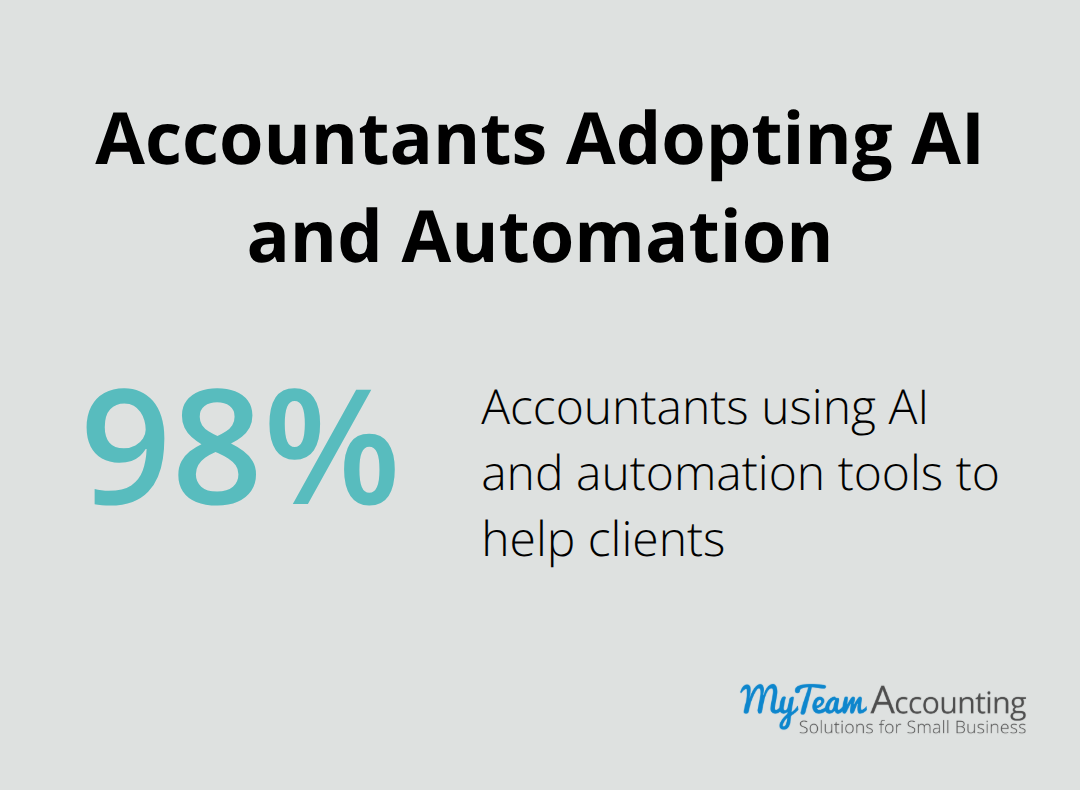
QuickBooks Online’s most powerful feature isn’t flashy-it’s the ability to stop touching the same data twice. Automated bank feeds pull transactions directly from your financial institutions daily, eliminating the manual download-and-entry cycle that wastes hours every month. Once transactions land in QuickBooks, smart categorization learns from your patterns and suggests the right account or customer with each new entry. This isn’t guesswork; the system improves over time as you confirm or correct suggestions, creating a feedback loop that reduces manual review to under five minutes per day for most small businesses. Approximately 98% of accountants now use AI and automation tools to help clients, signaling that this shift isn’t optional-it’s become the standard for competitive advisory work.
Recurring transactions and bills deserve automation first
Recurring bills represent low-hanging fruit that most business owners miss. Instead of manually entering vendor invoices monthly, you can set up recurring transactions in QuickBooks for fixed expenses like rent, subscriptions, or loan payments. The software generates these entries automatically on schedule, eliminating typos and ensuring nothing gets missed. Paired with automated payment options, you authorize these bills to pay themselves on the due date, which accelerates cash flow forecasting and removes approval bottlenecks. This approach also strengthens your financial controls because the transaction history becomes auditable and consistent.
Invoice automation closes the cash flow gap
Invoice automation is where real cash flow improvement happens. Rather than manually creating invoices for every project or sale, QuickBooks can generate them automatically when triggered by project milestones, subscription renewals, or contract dates. Combined with automated payment reminders, this workflow pushes due payments into customer inboxes without your intervention. Businesses using automated invoicing and reminders see payments arrive approximately five days faster than those managing invoices manually-a difference that compounds significantly over a year. Branded, standardized invoice templates in QuickBooks ensure professional presentation and complete payment terms, reinforcing that invoicing is a business process, not an afterthought.
Why these three pillars work together
Each pillar addresses a specific pain point, yet they function as an integrated system. Bank feeds eliminate data entry on the inbound side; recurring transactions handle outbound obligations; invoice automation accelerates inbound cash. When you activate all three, you transform your accounting from reactive (responding to what happened) to proactive (controlling what happens next). This foundation prepares you to implement the strategic controls and monitoring practices that prevent errors and protect your business.
Building Automation Into Your Financial Controls
The gap between setting up automation and using it effectively separates businesses that see real results from those that don’t. Most small business owners activate bank feeds and recurring transactions, then assume the system runs itself-a costly mistake. Automation only works when you map your actual business processes to the workflows QuickBooks can handle, then establish monitoring practices that catch errors before they compound. Start by listing your highest-friction financial tasks: vendor payments, customer invoicing, expense categorization, and month-end reporting. For each task, identify whether it is truly repetitive (same vendor, same amount, same date) or conditional (depends on project status or customer contract terms). Repetitive tasks are automation gold; conditional tasks need custom rules instead. QuickBooks allows you to create rules that auto-categorize transactions based on vendor name, amount range, or account type, dramatically reducing manual review. Set up a rule for your largest vendors first-rent, payroll, utilities-because errors in these categories directly distort your financial picture. Test each rule for two weeks before full activation; a misconfigured rule that auto-categorizes vendor invoices to the wrong expense account will corrupt months of data and force painful rework. Assign one person ownership of your automation setup, not because they will maintain it forever, but because consistency matters during the critical first 90 days. This person documents which rules exist, why they exist, and when you last reviewed them-information that prevents duplicate rules and conflicting logic down the line.
Monitoring catches automation failures before they hurt you
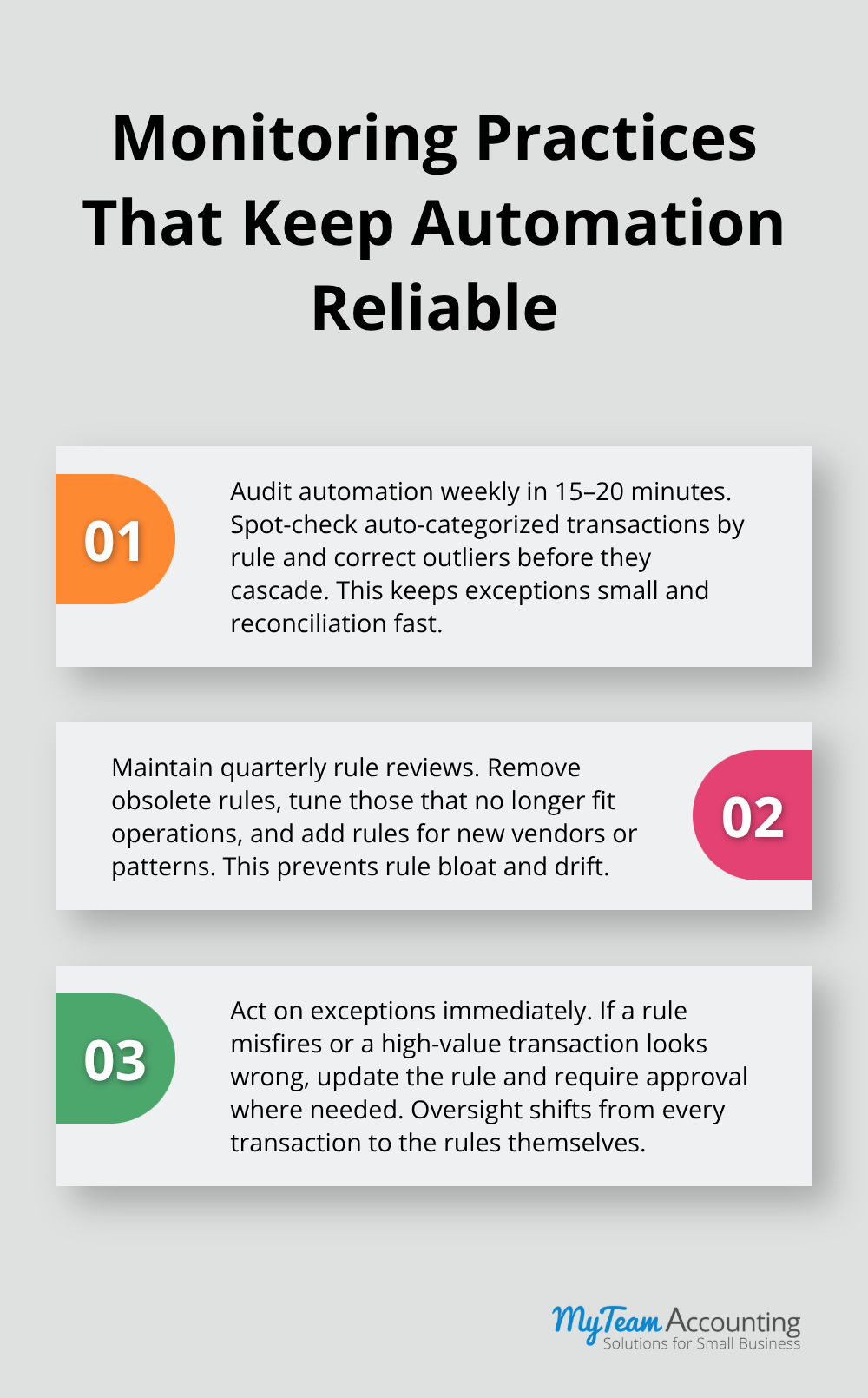
Automation does not eliminate human oversight; it relocates where that oversight happens. Instead of reviewing every transaction as it enters QuickBooks, you now review the rules themselves and spot-check the results they produce. Pull a weekly report of auto-categorized transactions grouped by rule, scanning for outliers or unexpected patterns. If your rent rule suddenly categorizes a transaction differently, or if your vendor rule catches a payment it should not, update the rule immediately. Most small businesses need 15 to 20 minutes weekly to audit automation results; skip this step and you will spend hours in month-end reconciliation chasing phantom errors. Equally critical: establish a quarterly rule review where you delete obsolete rules (the vendor you stopped using six months ago), adjust rules that no longer match your current operations, and add new rules for recent vendors or expense patterns. This prevents rule bloat and keeps your automation efficient.
Audit trails and access controls protect your data
Audit trails in QuickBooks log every change to a transaction, showing who adjusted what and when-use this feature to enforce accountability and catch unauthorized edits. If you employ bookkeepers or outsource accounting work, role-based access controls let you restrict what each person can view or modify, protecting against accidental changes or intentional manipulation. Set up alerts for high-value invoices or unusual payment amounts, requiring manual approval before funds leave your account. This control layer turns automation from a time-saver into a risk reducer, giving you the financial visibility that growth demands.
Moving from control to insight
These monitoring practices establish the foundation you need to trust your automated systems. Once you confirm that your rules work correctly and your team follows approval workflows, you can shift your focus from preventing errors to extracting insights from the clean, consistent data your automation produces. The next chapter explores how to transform this reliable financial data into forward-looking cash flow forecasts and real-time dashboards that reveal where your business stands and where it is headed.
From Data to Decisions: Real-Time Financial Visibility
Clean, automated financial data means nothing if you cannot see it or act on it. The real power of QuickBooks Online automation emerges when you connect your reliable transaction data to dashboards and forecasting tools that answer the questions keeping you awake at night: How much cash do I actually have? When will I hit a shortfall? Where is my money really going? Most small business owners run their businesses on gut feel, checking their bank balance like a nervous habit rather than understanding their true financial position. This approach works until it does not, and then cash flow problems damage supplier relationships or force expensive emergency financing. Real-time financial dashboards eliminate this blind spot. Instead of waiting for month-end reports, you pull up your profit and loss, balance sheet, and cash flow position at any moment, filtered by whatever dimension matters to your business: revenue by customer, expenses by project, or profitability by location. QuickBooks generates these reports automatically from your automated transactions, so the data stays current and reflects your actual operations, not historical snapshots. The key is defining three to five critical financial metrics that genuinely drive your business decisions. For most small businesses, this means tracking cash flow (how much runway you have), days sales outstanding or DSO (how quickly customers pay), gross margin (whether your pricing covers your costs), and revenue growth (whether you move forward). Once you identify these metrics, schedule automated report delivery to your inbox weekly or monthly, depending on how volatile your business is. A contractor managing multiple projects needs weekly cash flow reports; a service business with steady monthly revenue can review reports monthly. The difference between businesses that use financial data strategically and those that do not often comes down to this simple practice: they look at their numbers regularly, spot trends early, and adjust before problems compound.
Predictive forecasting turns historical data into future planning
Automated reporting shows you where you have been; forecasting shows you where you are headed. QuickBooks Online integrates with forecasting tools and business intelligence platforms like Tableau and Power BI that let you project cash flow based on your historical patterns, outstanding invoices, and scheduled expenses. This matters enormously because cash flow timing is everything. You might be profitable on paper while facing a cash crisis because customer payments lag your vendor payments by 30 days. A proper cash flow forecasting approach surfaces these gaps weeks or months in advance, giving you time to negotiate better payment terms, arrange a line of credit, or adjust spending. Start with a simple forecast: take your average monthly revenue from the last three months, subtract your fixed expenses (rent, salaries, loan payments), and subtract your variable expenses (materials, commissions, services that scale with revenue). That tells you your monthly cash burn or surplus. Then layer in your accounts receivable aging (how long it takes customers to pay) and accounts payable terms (when you must pay vendors). If customers pay in 45 days and you pay vendors in 30 days, you need 15 days of operating expenses in reserve just to survive normal cash flow timing. Most small business owners have never completed this calculation, which explains why profitable companies run out of cash. Advanced forecasting models factor in seasonality, growth rates, and one-time events like tax payments or equipment purchases. QuickBooks data feeds these models automatically, so you do not manually update spreadsheets. The forecast updates as new transactions post, keeping your view of the future aligned with your current reality. This is not about perfect prediction; it is about identifying the scenarios where you need to act, whether that means holding cash, accelerating collections, or negotiating extended terms with vendors.
Integrations create the data backbone your forecasts depend on
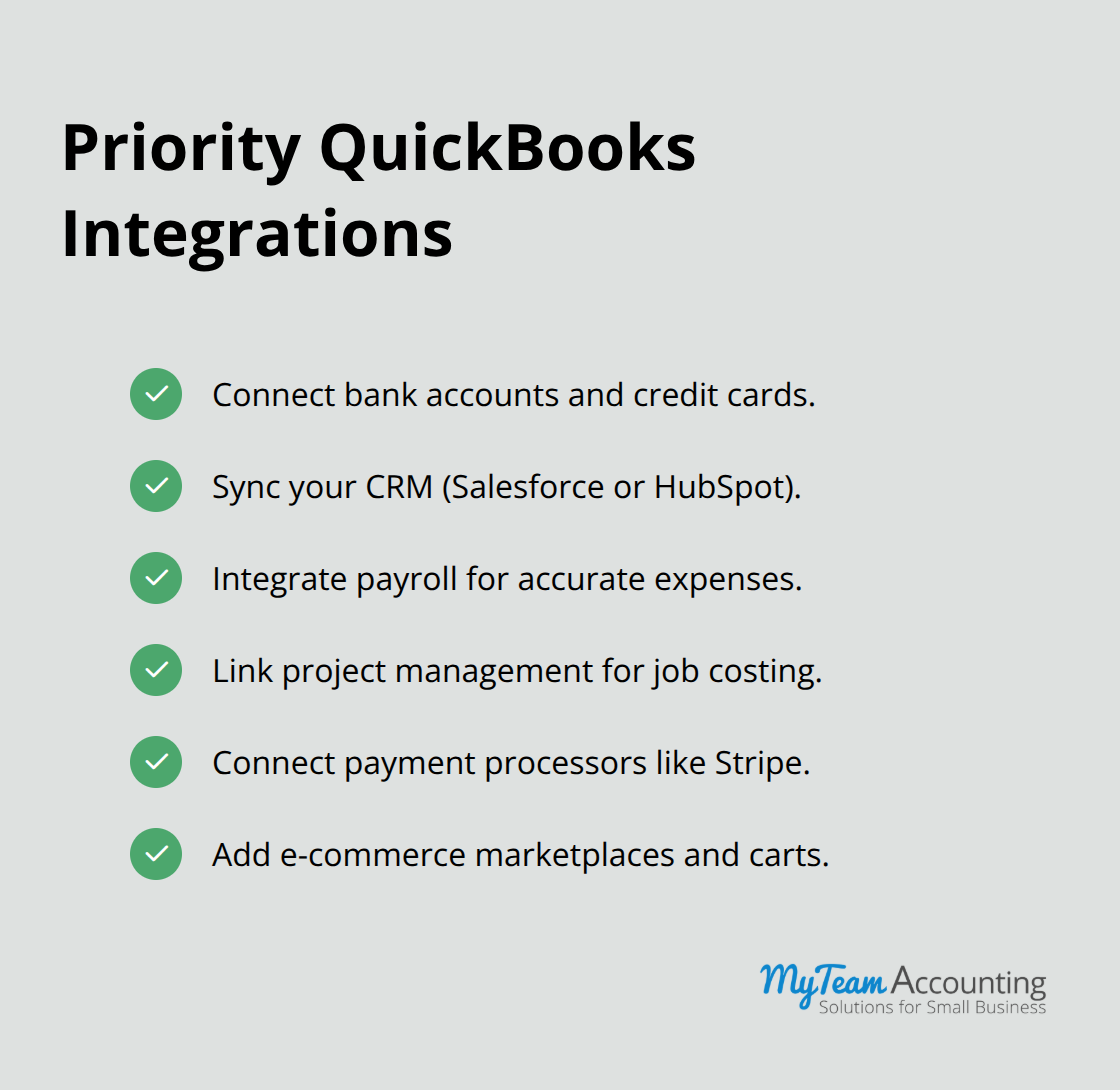
Automated financial reporting and forecasting fail silently when your data sits in silos. If your invoicing system does not talk to QuickBooks, your revenue forecast is incomplete. If your payroll processor does not sync with QuickBooks, your expense tracking is wrong. The strongest automation strategy treats QuickBooks as the central hub where financial data from every part of your business converges. Connect your CRM (Salesforce, HubSpot) so customer data syncs automatically, preventing billing errors and giving you visibility into revenue by customer or sales pipeline. Link your project management tool to tag invoices and expenses by project, answering the critical question: which projects are actually profitable? Integrate your bank accounts and credit cards so transactions flow in daily without manual downloads. Connect payment processors like Stripe so customer payments reconcile automatically. Each integration eliminates a manual step and a potential data mismatch. Start with your core integrations: bank accounts, CRM, and payroll. These three touch the largest dollar amounts and require the most frequent reconciliation. Once these run smoothly, add integrations selectively based on where your team spends the most time on manual data entry.
Final Thoughts
Automating your finances with QuickBooks Online transforms how you operate. The three automation pillars-bank feeds, recurring transactions, and invoice automation-eliminate hours of manual work each month while reducing errors that compound into costly reconciliation problems. When you pair these with monitoring practices and audit controls, automation becomes the foundation for financial control, not just efficiency. Real-time dashboards and forecasting tools then convert this reliable data into forward-looking insights that reveal cash flow gaps before they threaten your business.
The wins are measurable and immediate. Businesses using QuickBooks automation report faster customer payments, fewer categorization errors, and dramatically reduced month-end close time. Your team shifts from data entry to analysis, spending their hours on decisions that drive growth rather than transactions that repeat endlessly. This is the promise of modern bookkeeping software: financial operations that run themselves while you focus on strategy.
Starting your automation journey requires you to choose one high-impact process-typically invoicing or vendor payments-and implement it fully before expanding. Document your rules, assign ownership during the critical first 90 days, and audit results weekly until you trust the system completely. Your accountant or bookkeeping advisor understands your specific business model, cash flow patterns, and growth challenges in ways generic software cannot, and they design QuickBooks automation strategies tailored to your operations, implement integrations that actually reduce manual work, and interpret your financial data to answer the questions that matter most.