Xero Setup Checklist: A Step-By-Step Guide for Smooth Onboarding
Setting up Xero correctly from day one saves time, prevents costly errors, and ensures your financial data is accurate and compliant. Many small business owners struggle with configuration because they skip critical steps or don’t know where to start.
This Xero setup checklist breaks down the entire onboarding process into manageable sections. Follow this guide to configure your accounting system properly and establish a strong foundation for financial management.
Getting Your Business Ready for Xero
Collect Your Financial Foundation
Before you open Xero and start clicking through setup screens, you need to gather specific documents and make deliberate decisions about your accounting structure. Small business owners who rush this phase typically reconfigure their entire system three months later, wasting hours and creating duplicate entries. Spend a few days on preparation now and you’ll avoid painful restructuring later.
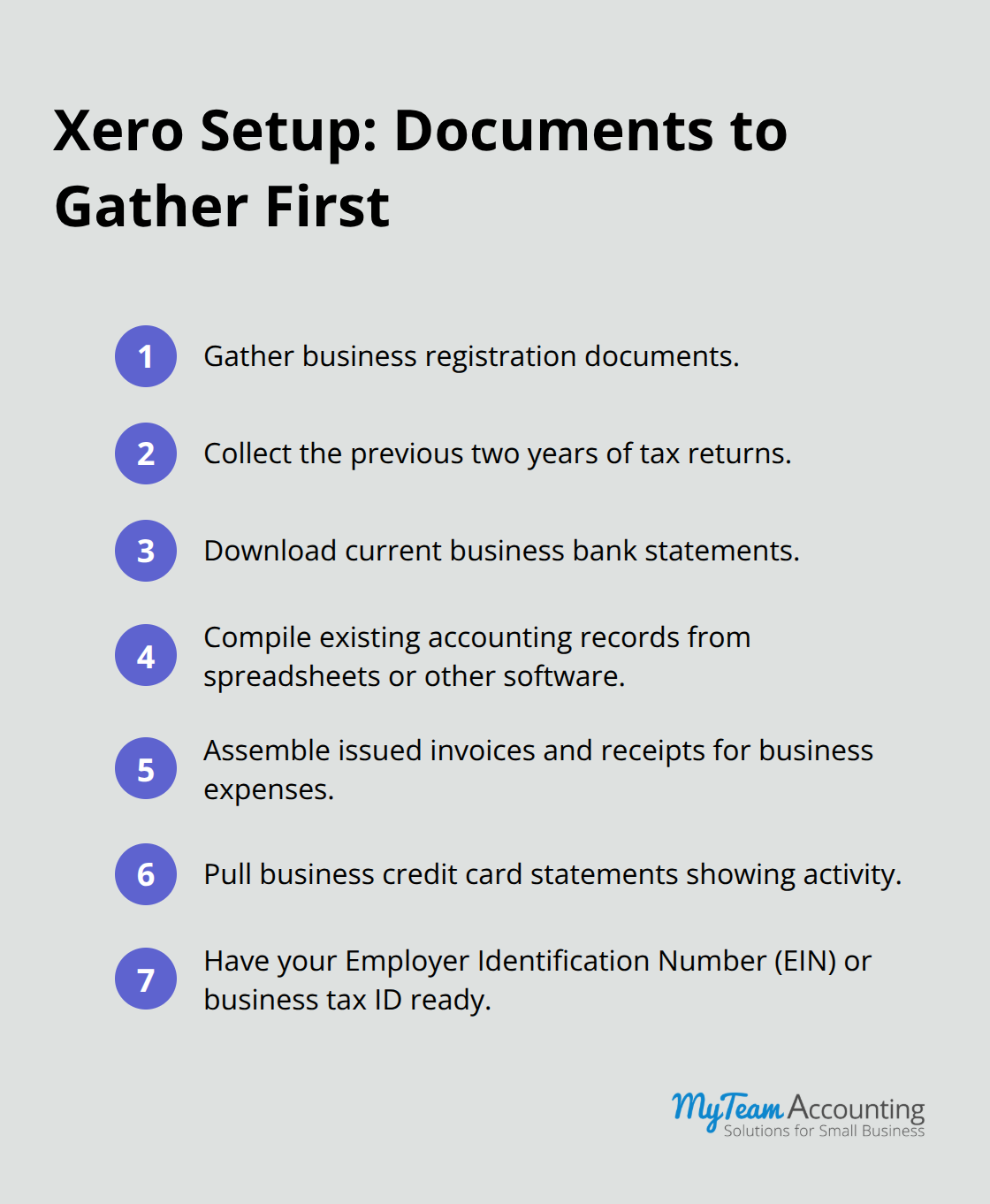
Start by collecting your business registration documents, previous tax returns from the last two years, current bank statements, and any existing accounting records from spreadsheets or other software. If you’ve operated without formal records, pull together invoices you’ve sent, receipts for business expenses, and credit card statements that show business activity.
Select Your Fiscal Year Strategy
Your fiscal year choice directly impacts tax filing deadlines and quarterly reporting obligations, so this decision shouldn’t be casual. Most small businesses operate on a calendar year (January to December), which aligns with personal tax returns and simplifies payroll compliance. However, if your business has seasonal patterns-like a retail shop that peaks in November and December or a tax preparation firm that peaks in March-you might choose a different fiscal year ending during your slowest period.
A fiscal year ending during your slow season gives you time to close books and file taxes without operational pressure. Consult your accountant or tax professional before finalizing this choice, as changing your fiscal year later requires IRS approval and creates compliance complications.
Choose the Right Xero Plan
The Standard plan at $13 per month covers basic invoicing and expense tracking, while the Plus plan at $66 per month adds multi-user access, advanced reporting, and inventory management. If you’re managing multiple team members, inventory, or complex projects, Plus becomes essential immediately-don’t wait to upgrade when your team is already frustrated with access limitations.
For most solo founders and micro-businesses, Standard works initially, but assess whether you’ll need team members accessing Xero within your first year. Growing into Plus later means migrating workflows and retraining staff, so choosing correctly upfront saves friction. With your documents gathered, fiscal year confirmed, and plan selected, you’re ready to move into the actual Xero configuration phase.
Building Your Xero Foundation
Now that your documents are organized and your plan is selected, you need to build the actual structure where all your financial data lives. This is where most small business owners make mistakes that haunt them for months. Your chart of accounts is not a technical detail you can ignore-it’s the backbone of every financial report your business will generate, and restructuring it later costs far more time than what you invest upfront.
Structure Your Chart of Accounts
Access Xero’s standard chart of accounts template, which comes pre-loaded with common business accounts organized by category. Do not accept this template as-is. Instead, review each account against your specific business model and remove anything you won’t use.
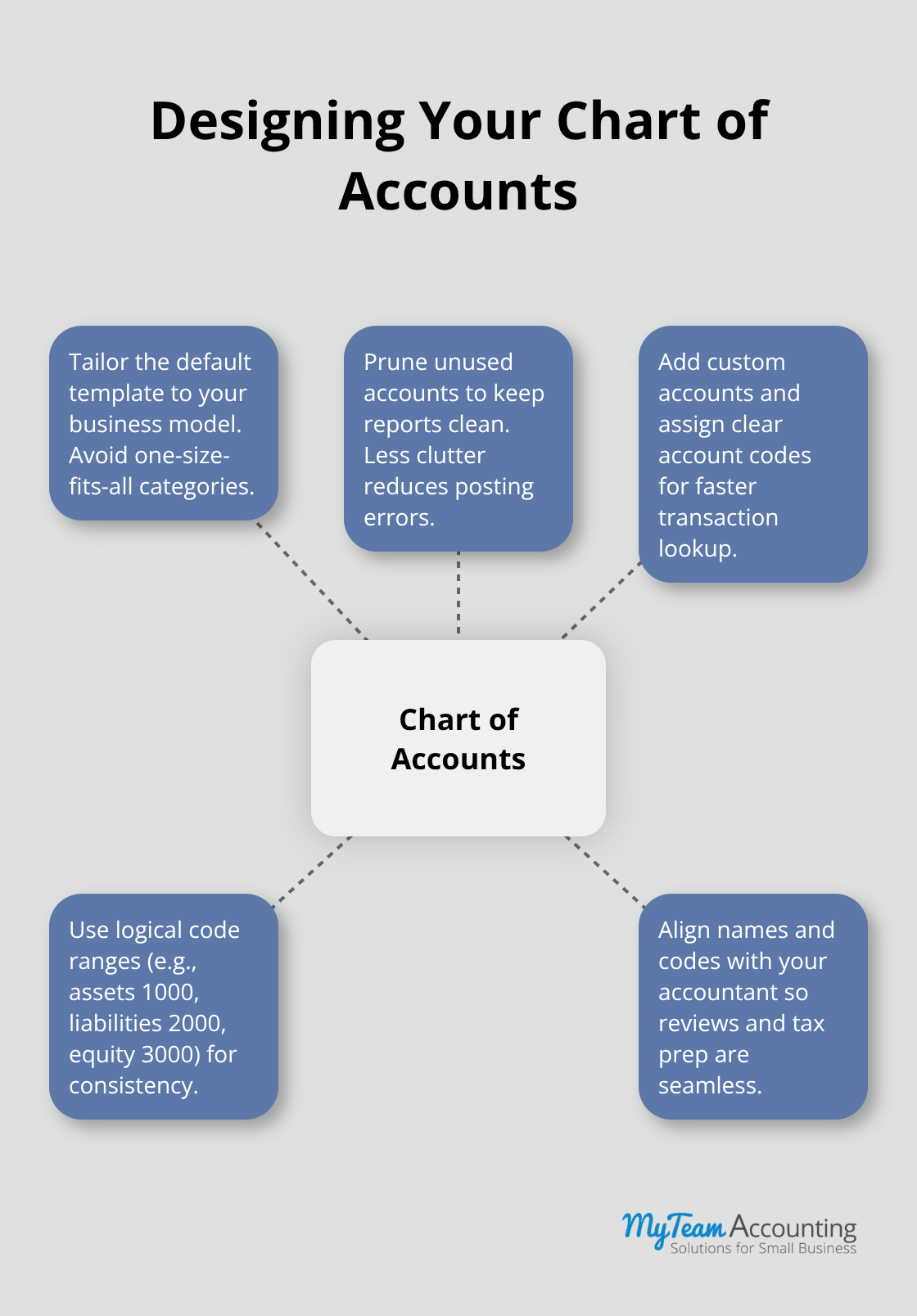
Use a logical coding system: assets might start with 1000, liabilities with 2000, equity with 3000, and so on. This consistency prevents data entry errors and makes your financial statements infinitely easier to audit. Consult with your accountant before finalizing your chart of accounts structure, as they’ll need to recognize your account names and codes when they review your books or prepare your tax return.
Connect Your Banking and Automate Transactions
Banking connections determine how transactions flow into Xero, and this is where automation saves you hours every month. Xero connects directly to financial institutions globally, meaning your bank transactions sync automatically rather than requiring manual entry. Set up your primary business bank account first, then add any additional checking accounts, savings accounts, or credit cards you use for business expenses.
When Xero pulls transactions from your bank, it matches them against invoices and bills you’ve created, but this matching only works if your contacts are set up correctly first. Create your customer and supplier profiles with accurate names, email addresses, and payment terms before you connect banking. A customer named John Smith is useless if you have twelve transactions from variations like John S., J. Smith, or Smith John. Establish a naming convention now-use full legal business names for all customers and suppliers, not nicknames or shortened versions.
Set Up Contacts and Payment Methods
This discipline ensures Xero’s bank reconciliation feature works effectively and prevents duplicate contact records that fragment your financial data. Configure your preferred payment options like electronic bank transfers, credit card processing, or check writing within Xero’s settings. If you plan to accept online payments, integrate a payment processor like Stripe or PayPal at this stage, as these connections automate customer payment recording and reduce reconciliation headaches significantly.
With your chart of accounts structured, your banking connected, and your contacts established, you’ve created the infrastructure that supports everything else in Xero. The next phase moves beyond foundational setup into the advanced settings that ensure your system stays compliant and operates at full efficiency.
Configuring Compliance and Extending Xero’s Power
Customize Your Invoices for Brand and Compliance
Your invoices represent your first impression with customers and your legal documentation for tax purposes, so treating them as generic templates wastes an opportunity to reinforce your brand while ensuring tax compliance. Open Xero’s invoice customization settings and add your logo, payment terms, and bank details directly into the template rather than relying on customers to hunt for payment information. Include your tax ID number and business registration details on every invoice, as this protects you during audits and clarifies your legal entity to customers and tax authorities.
Most small business owners use Xero’s default invoice layout, which is functional but forgettable. Customize your color scheme to match your branding, add a professional footer with your website and contact information, and most importantly, set your payment terms to match your actual business practice. If you give clients 30 days to pay, state Net 30 clearly on every invoice. If you require payment upfront, configure Xero to reflect that requirement. The specificity matters because vague payment terms create cash flow delays and customer confusion that accounting software alone cannot resolve.
Configure Tax Settings for Your Jurisdiction
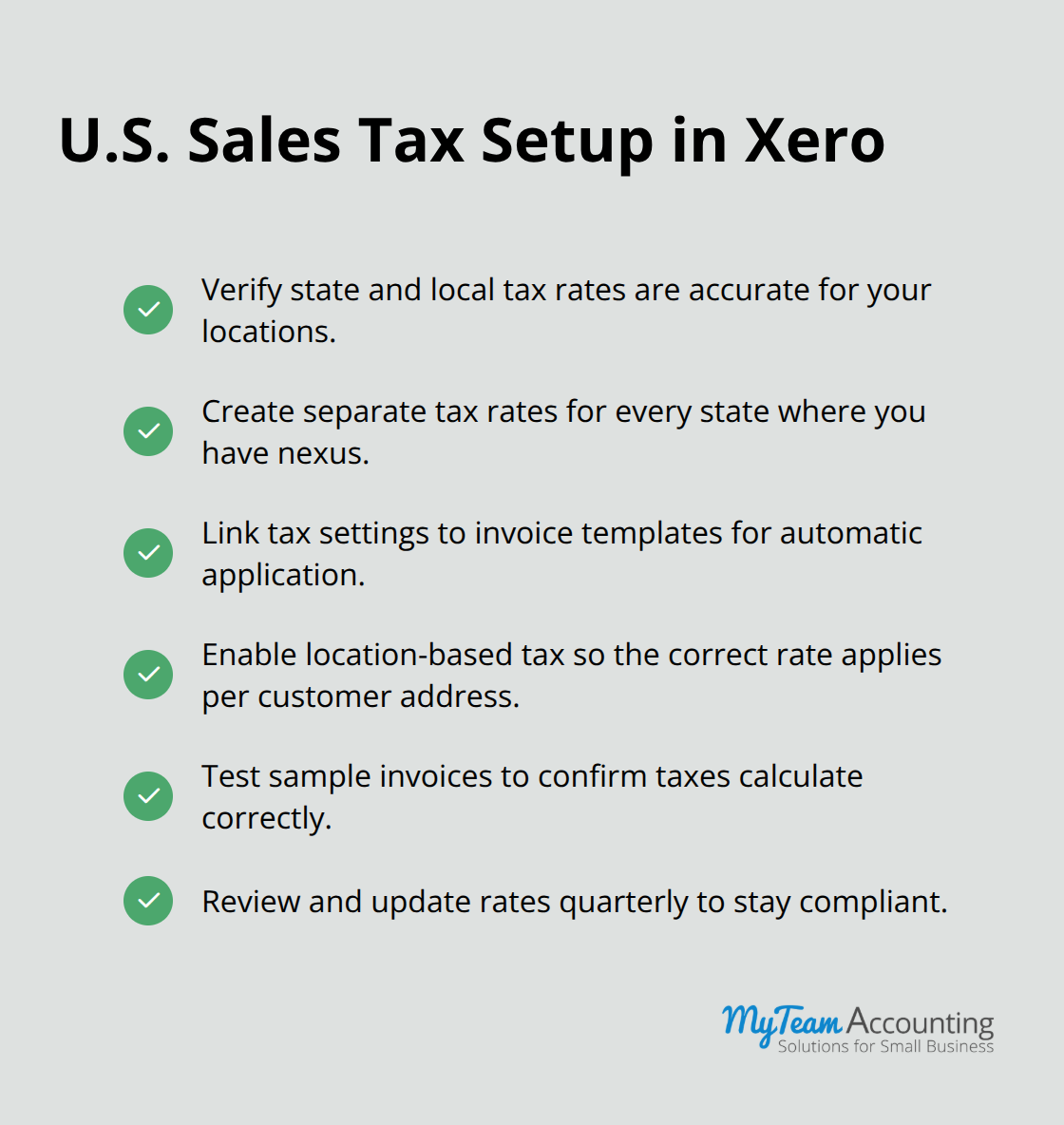
Tax configuration demands immediate attention because errors here cascade through your entire financial system and create compliance nightmares during tax season. Access Xero’s tax settings and verify that your tax rates match your jurisdiction’s requirements. If you operate across multiple states or countries, configure each applicable tax rate separately rather than applying a single blanket rate.
Many small business owners overlook sales tax nexus rules and either overcharge customers or underpay tax obligations, both of which create legal exposure. Integrate your tax settings with your invoices so Xero automatically applies the correct tax rate to each transaction based on the customer’s location. This automation prevents manual errors and ensures consistent compliance across all your sales documents.
Integrate Strategic Tools to Eliminate Manual Entry
Once your compliance foundation is solid, extend Xero’s capabilities through strategic integrations that eliminate manual data entry and reduce errors. Connect accounting software like HubSpot or Zapier to automatically create invoices when deals close or customers sign contracts, rather than manually entering this information days later. Integrate your payroll provider so employee payments flow directly into Xero without duplicate entry.
If you use project management tools like Asana or Monday.com, connect them to Xero so billable hours and project expenses sync automatically into invoices. The integration strategy should follow this principle: if you enter the same information into two different systems, you need an integration to eliminate that duplication. Evaluate your existing business tools and identify which ones generate financial data that currently requires manual transfer into Xero. Those are your integration priorities.
Most small business owners integrate three to five critical tools and leave dozens of other connections unused, which is the correct approach. Focus on eliminating your highest-friction manual processes first, not on connecting every possible application. This targeted strategy maximizes your return on setup time and prevents you from becoming overwhelmed with unnecessary integrations.
Final Thoughts
You’ve now completed this Xero setup checklist and transformed your accounting system from a blank slate into a structured foundation that reflects how your business actually operates. Your chart of accounts is organized logically, your banking connections pull transactions automatically, and your compliance settings protect you during tax season. This infrastructure allows Xero to work for you rather than against you, turning data entry from a frustrating chore into a streamlined process.
Successful implementation requires you to maintain your system consistently after setup ends. Reconcile your bank accounts weekly so discrepancies surface immediately rather than hiding until month-end, review your chart of accounts quarterly to archive unused accounts and add new ones as your business evolves, and verify monthly that your integrated tools sync data correctly without duplication. Many small business owners set up Xero perfectly, then neglect it for months and discover their data has drifted into inconsistency that takes weeks to untangle.
Xero’s reporting tools generate insights about your cash flow, profitability by customer, and expense trends that inform real business decisions-use these reports to identify which customers are most profitable and where you’re overspending relative to revenue. If you want expert guidance on optimizing your Xero setup checklist or need help implementing these strategies, connect with our accounting team to ensure your system supports your growth from day one.